
How to add new users
Adding New Users
To add a new user to the system:
- Log in to the Clinical Portal.
- Select Users from the left-hand navigation menu (If you cannot find “Users”, you might not have access to user management).

- Click Invite User.

- Enter the user's details and assign the appropriate role and access level.
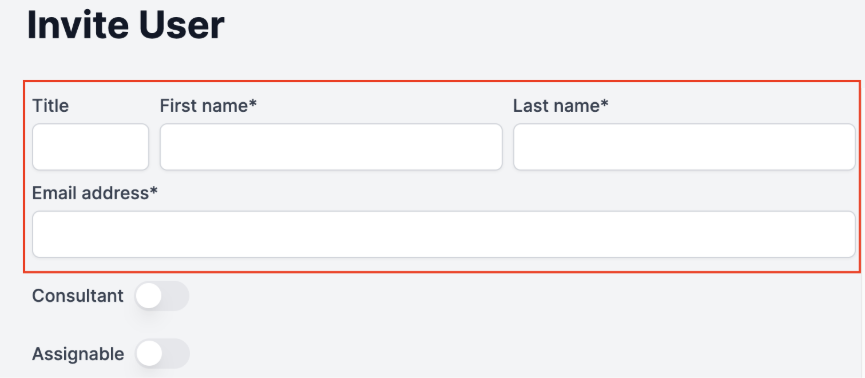
- Send the invitation.

Assigning Users to Dropdown Lists
When creating or editing a user, you can choose whether their name appears in the Consultant and/or Assigned dropdown menus throughout the platform.
Consultant
Select the Consultant checkbox if you want the user's name to appear in the Consultant dropdown on the Dashboard and Patient pages.
Note: Consultants are often assigned the No Access access level. See the access level table below for more information.
Assigned
Select the Assigned checkbox if you want the user's name to appear in the Assigned dropdown on the Dashboard and Patient pages.
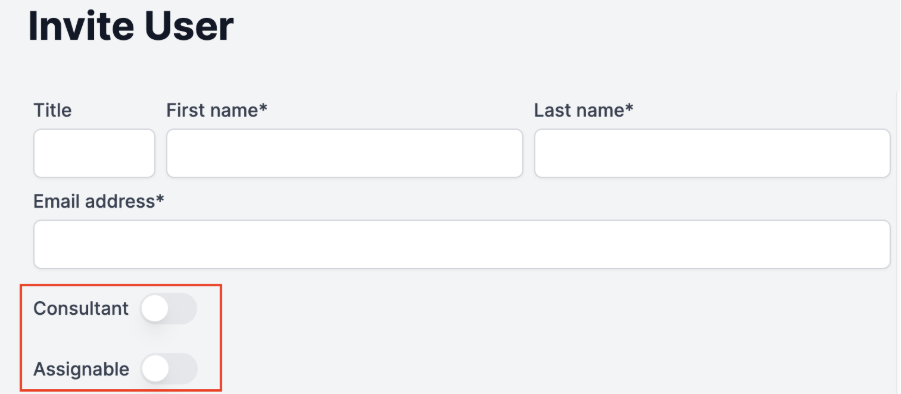
Patients are assigned to users manually.
Important
A user can be:
- Included in both dropdown lists
- Included in only one dropdown list
- Excluded from both dropdown lists
Choose the option that best matches the user's responsibilities.
Learn how to pick correct roles in the next article.