How to add, edit or archive labels
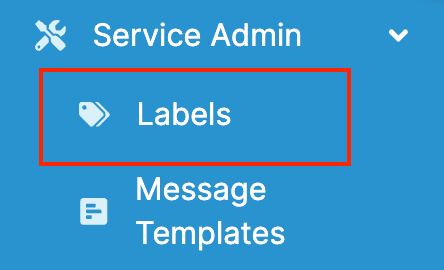
In the sidebar, navigate to Service Admin and open “Labels” (if you do not see this option in your portal, it is because you do not have permissions to create templates).
You will be able to add new ones by clicking the “Add label” button.

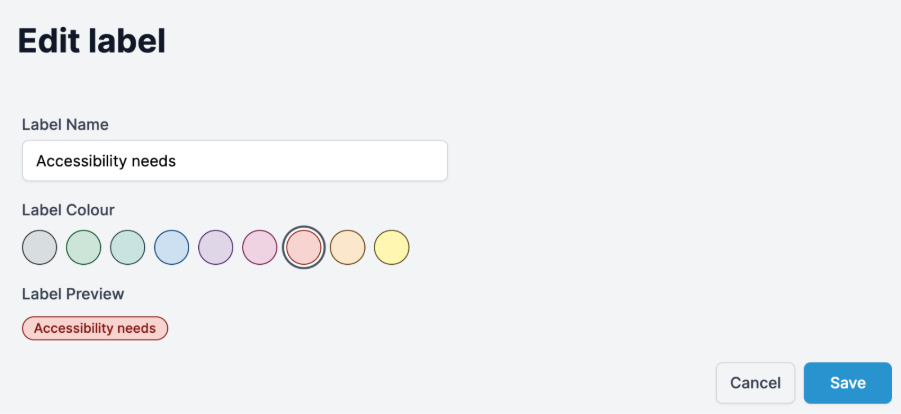
Type the name of the label under “Label Name” and pick a colour. You will see a preview of the label under “Label Preview”. Click on “Save” to save the changes.
To edit or archive existing labels, find the label in the list and click on the Actions menu (three dots). Select the action.
All archived labels will still display in the assessments if assigned, however will not be available to be picked from the menu going forward. Archived labels will also be available under the filter menu.